Lab 4: Accelerating Applications Lab
Objectives:
- Assign client-side and server-side profiles
- Set up caching for your web site
- Set up compression for your web site
Lab Prerequisites:
- Prior to starting this lab remove the cookie persistence profile from your virtual server.
TCP Express
- Set client-side and server-side TCP profiles on your virtual server
properties.
- In some earlier version you would be required to select the Advanced menu to see the Client and Server protocol profiles.
|C:\Users\RASMUS~1\AppData\Local\Temp\SNAGHTML1155a02f.PNG|
- If you chose to use the Advanced menu you would see a whole array of new options. There are Basic and Advanced drop downs on many of the GUI menus. You can always see Advanced menus by changing the preferences in System >> Preferences.
- From the drop-down menus place the tcp-wan-optimized profile on the client-side and the tcp-lan-optimized profile on the server-side.
HTTP Optimization - RamCache Lab
- Visit your virtual server’s web page and refresh it several times. Note the Source Node for the pictures of the BIG-IPs. They change depending on where the connection is coming from. The Source Node information is part of the picture.
- Go to Local Traffic >> Profiles >> Services >> Web Acceleration or Acceleration >> Profiles >> Web Acceleration
- Create a new profile named www-opt-caching using optimized-caching as the Parent Profile.
- Take all the defaults, no other changes are required.
- Open up your www_vs virtual server.
- At the HTTP Profile drop down menu make sure http is selected.
- Under Acceleration at Web Acceleration Profile select your new caching profile; www-opt-caching
- Clear the statistics on your pool and the refresh the main web page
several times.
- The pictures do not change. Why do you think that is?
- Go to your pool. Are all pool members taking connections?
- Now go to Statistics >> Module Statistics >> Local Traffic on the sidebar. From the Statistics Type drop-down menu select Profiles Summary
|C:\Users\RASMUS~1\AppData\Local\Temp\SNAGHTML1165ae63.PNG|
- Select the View link next to the Web Acceleration profile type
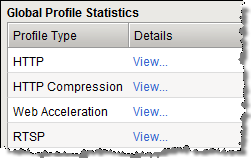
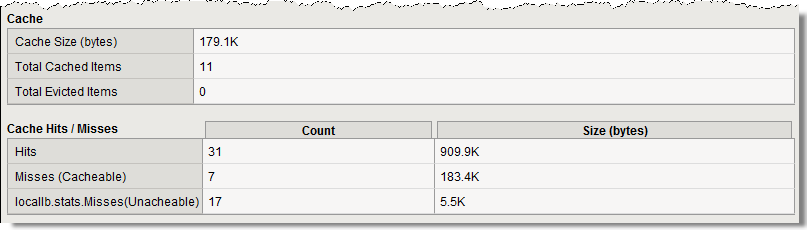
- You can get more detailed information on RamCache entries at the CLI level
- Log onto the CLI of your BIG-IP via SSH using the root account (user: root password: default).
- At the CLI go into tmsh at the (tmos)# prompt
- At the shell prompt enter show ltm profile ramcache www-opt-caching
HTTP Optimization - HTTP Compression Lab
- Go to Local Traffic >> Profiles >> Service>HTTP Compression or
Acceleration >> Profiles >> Web Acceleration
- Create a new profile, www-compress, using the wan-optimized-compression default profile.
- Open up your www_vs virtual server.
- At the HTTP Profile drop down menu make sure http is selected
- At the Web Acceleration drop-down menu select None
- For the purpose of this lab we don’t want caching interfering with our response headers
- At the HTTP Compression drop-down menu select the HTTP compression profile you just created
- Now open your virtual server’s web page and under Content Examples
on This Host select the HTTP Compress Example and Plaintext
Compress Example link
- Now off to the statistics on the sidebar. Under the Local Traffic drop-down menu select Profiles Summary
- Select the View link next to the HTTP Compression profile type
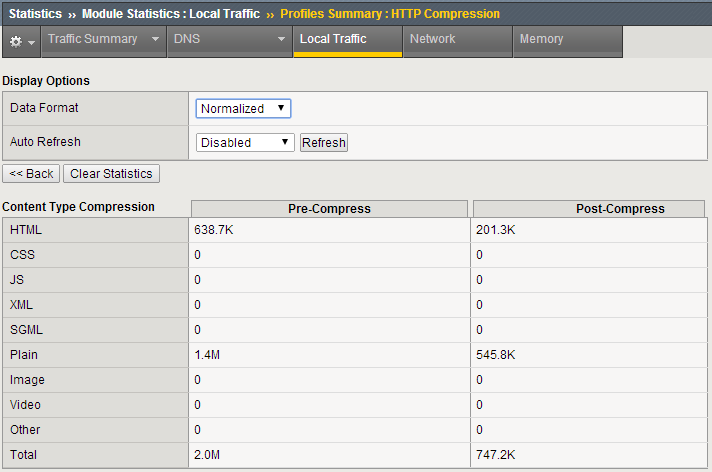
- On the web page under HTTP Request and Response Information
select the Request and Response Headers link.
- Notice you no longer see the Accept-Encoding header in the Request Headers Received at the Server section
Archive your work in a file called: lb4_acceleration